Getting an EIN (Employer Identification Number) for your LLC is an important step in organizing your business tax information. This LLCTutor.com guide shows U.S. residents and citizens how to follow the IRS online application, from reviewing the opening instructions to entering LLC details, identifying the responsible party, and saving the confirmation letter if the application is approved. You will learn what information to prepare, how to follow each screen, and what to check before submitting. Applying directly through the IRS is free. Online eligibility also depends on your business location and taxpayer identification information, which we explain as you move through the guide.
Step 1: Start Your EIN Application
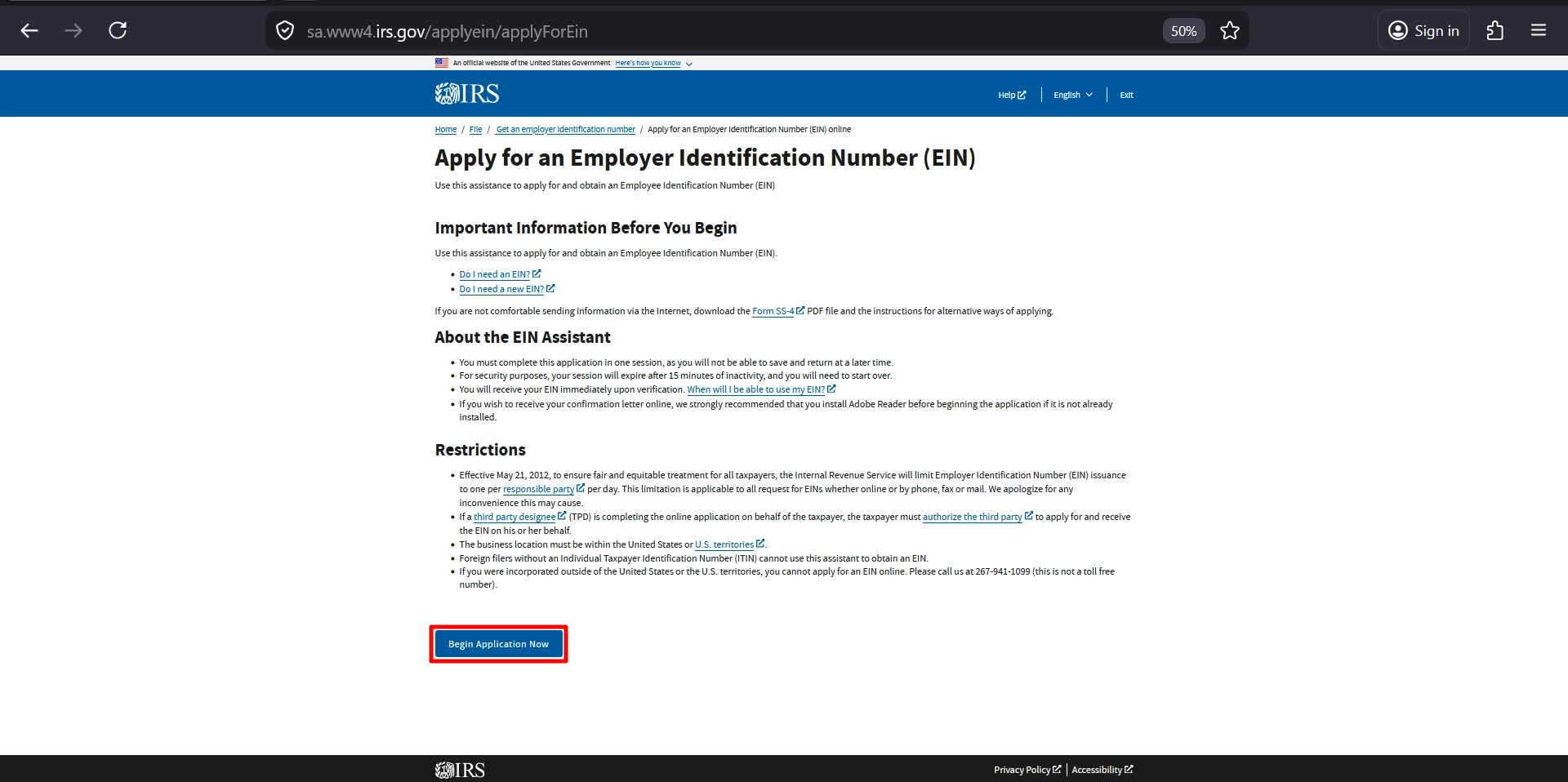
- Start Your EIN Application: Click here to access the official IRS online EIN application.
- Instructions for The Review: Read the requirements and restrictions set out in the application.
- Before You Begin: You must complete the application in one session, as it will time out after 15 minutes of inactivity.
-
Start the application now: please click “Begin Application Now” button to proceed.
Step 2: Select Your LLC Structure and Details
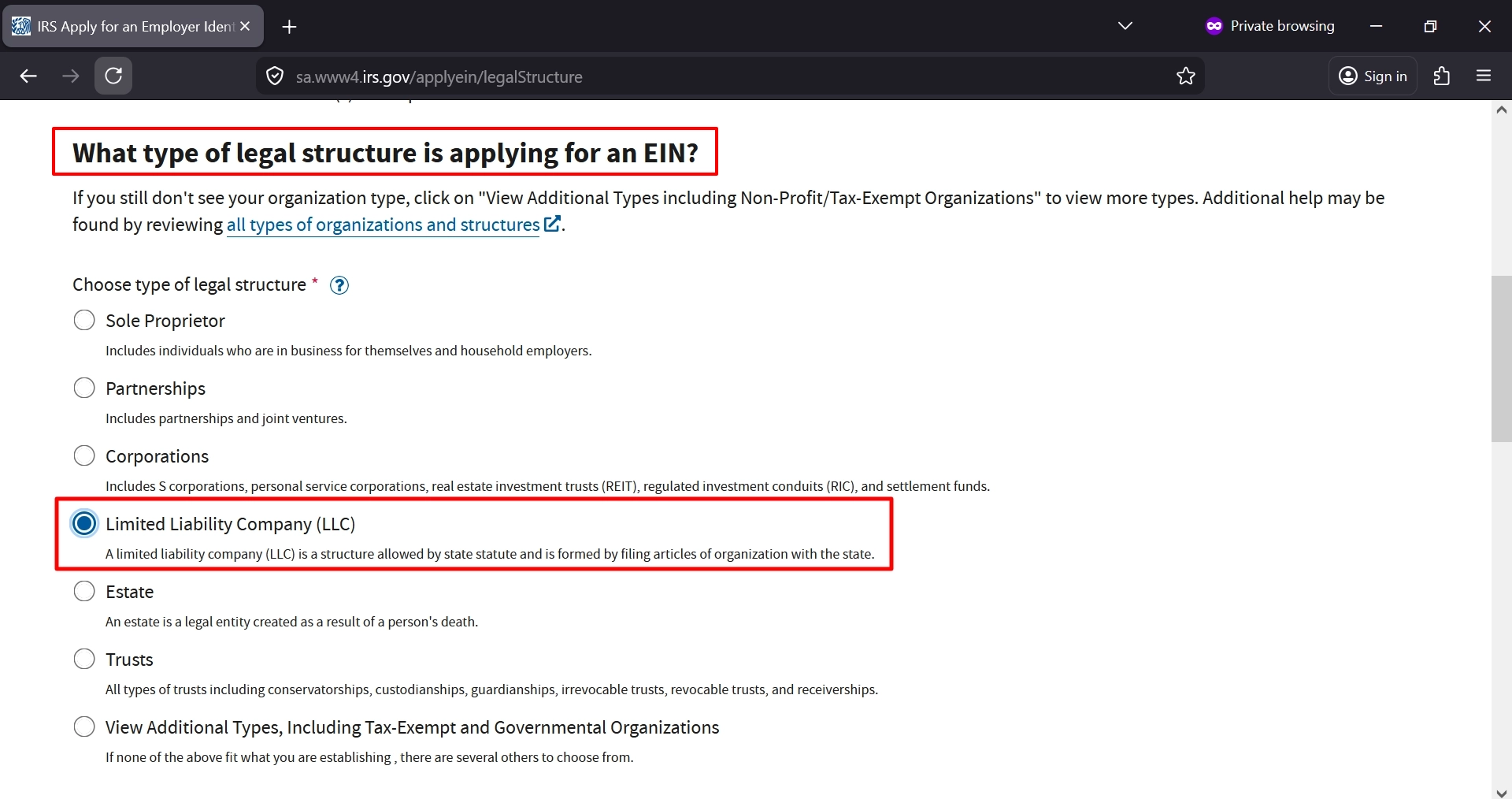
- Legal Structure: Select Limited Liability Company (LLC), as shown, if applying for your LLC.
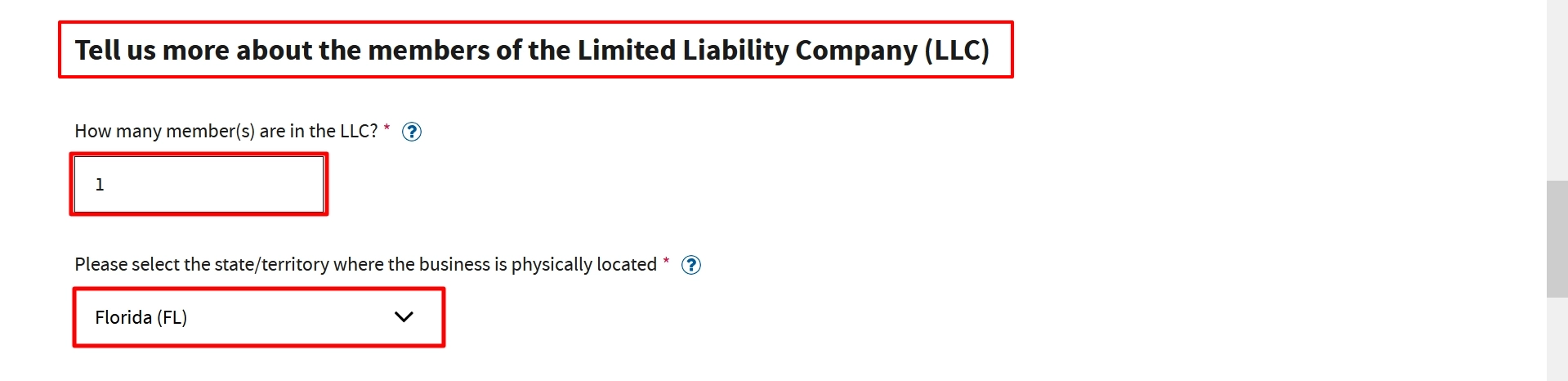
- Number of Members: The example shows 1. Enter your LLC’s actual number of owners.
- Business Location: Florida (FL) is selected. Choose the state or territory where your business is physically located.
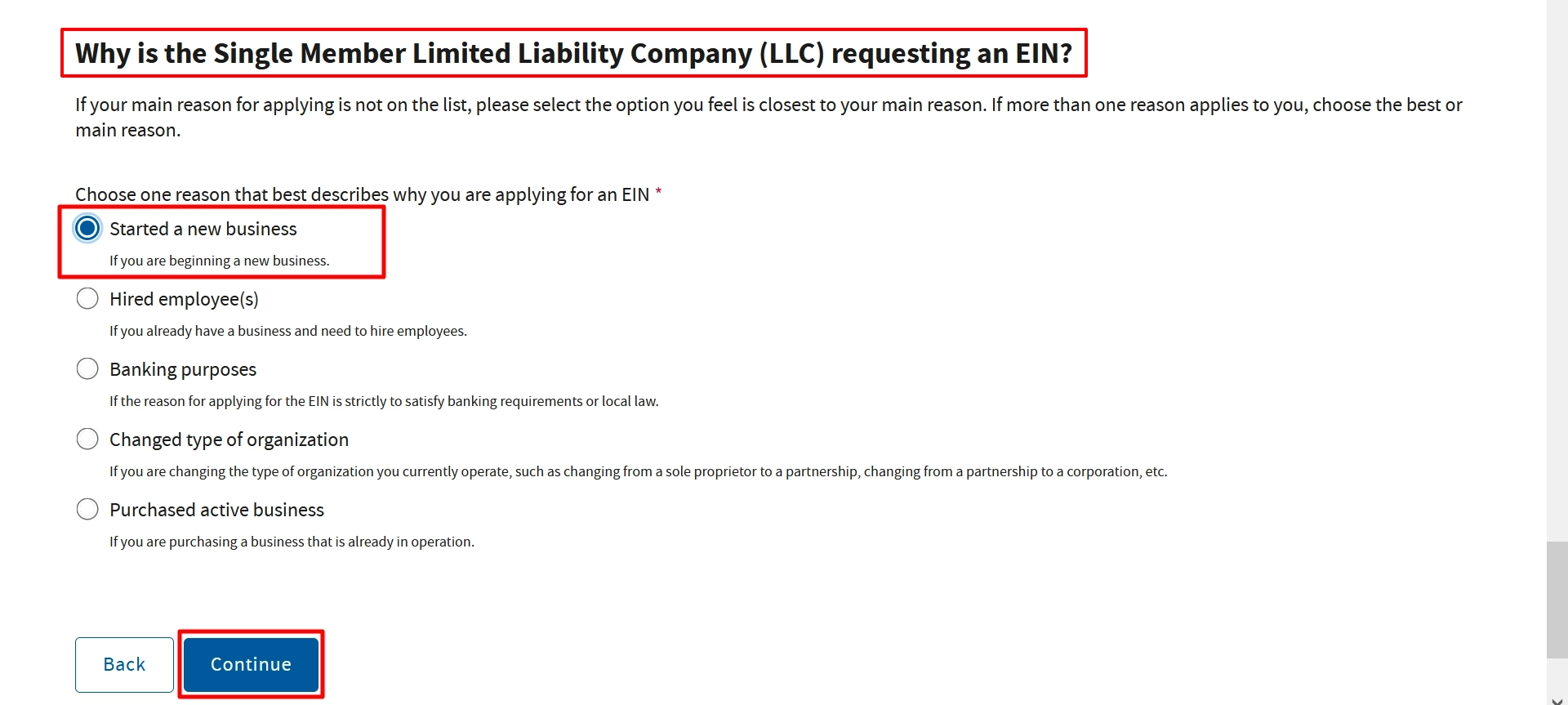
- Application Reason: The example selects Started a new business. Choose the reason that matches your situation.
- Continue: Review your answer, then click Continue.
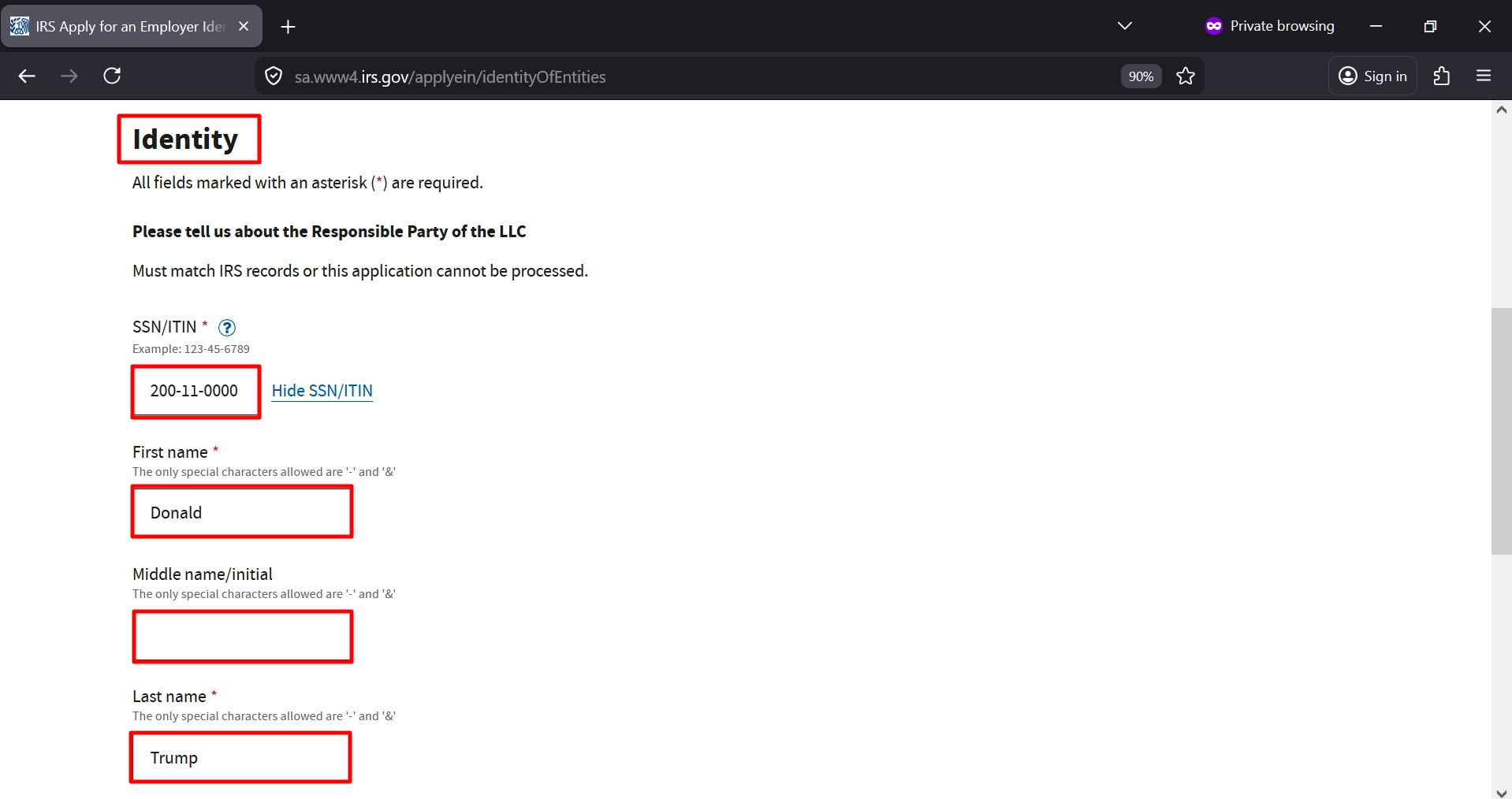
Step 3: Enter the Responsible Party’s Details
-
Enter the valid SSN or ITIN of the responsible party.
-
Enter your first name, middle name or initial if relevant, and last name. The information you provide must agree with the IRS records. Make sure you use accurate details of your own.
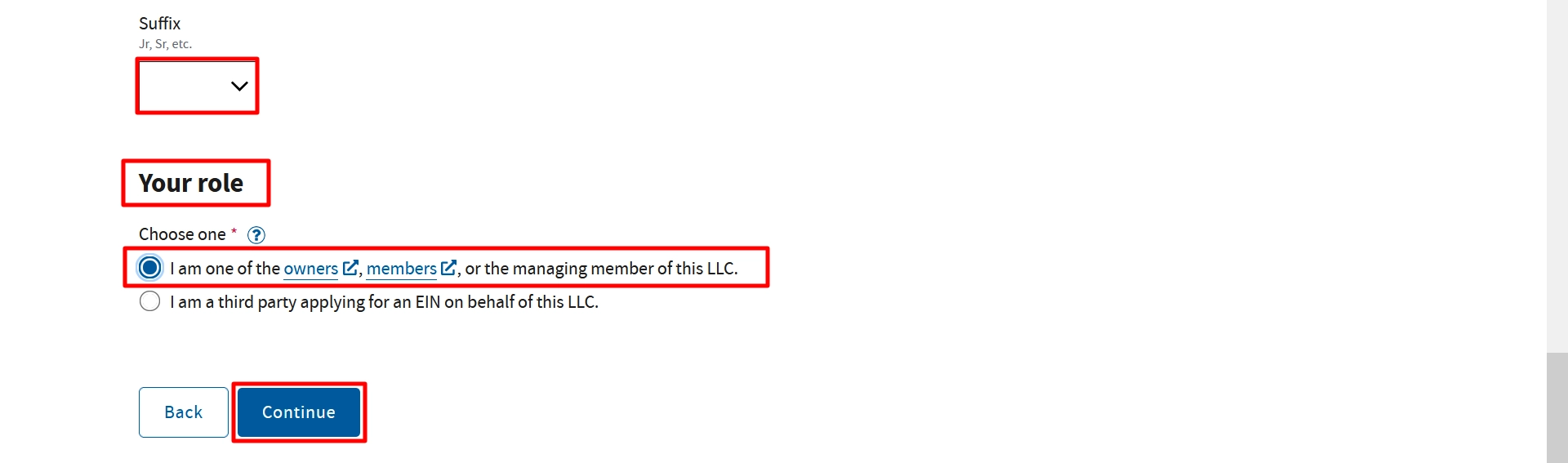
- Suffix: Select a suffix only if applicable.
- Your Role: The example selects “I am one of the owners, members, or the managing member of this LLC.” Choose the option that accurately describes your role.
- Continue: Review the details, then click Continue.
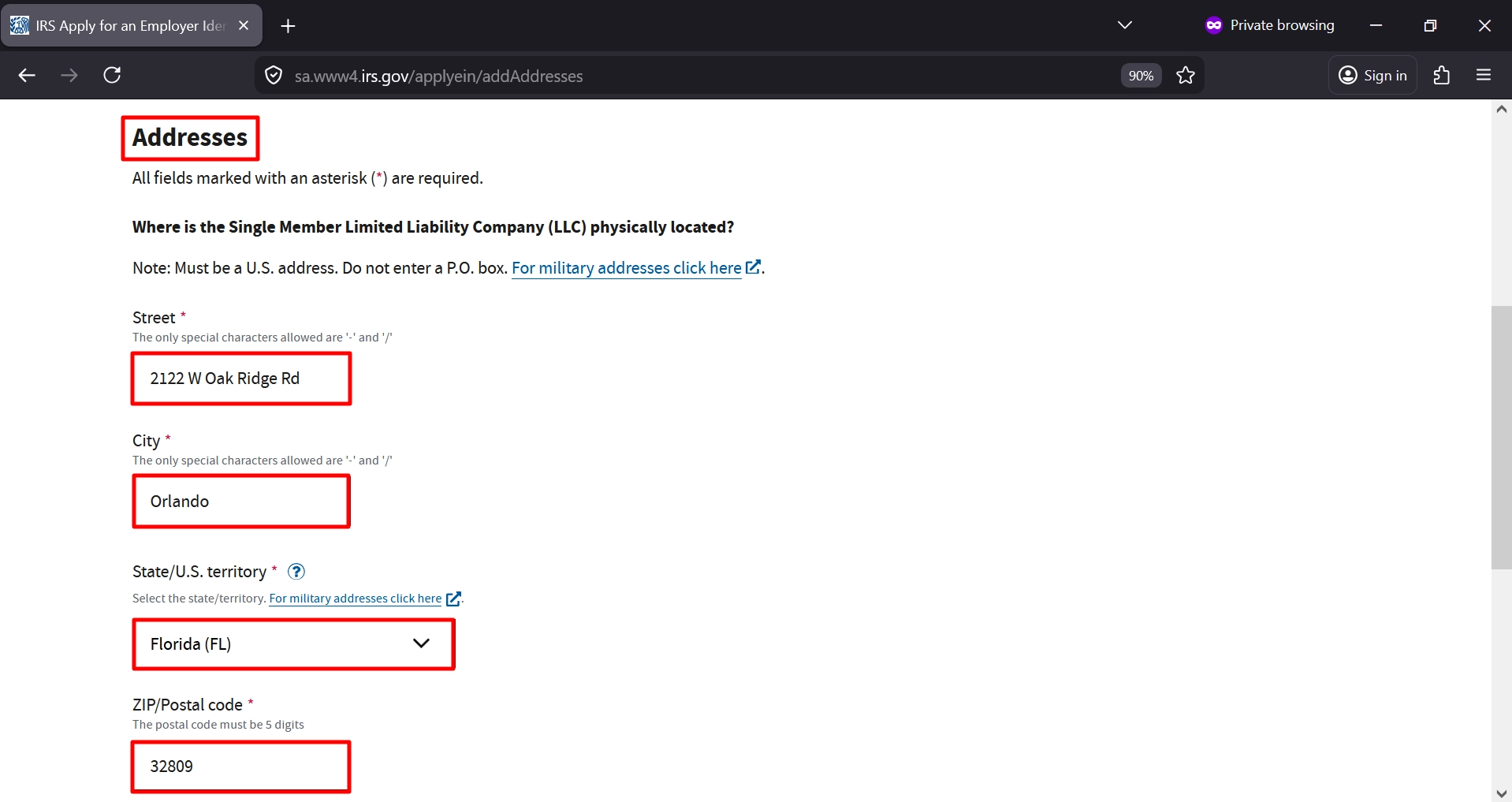
Step 4: Enter Your Business Address and Phone Number
- Street and City: enter the physical U.S. address of your LLC; do not use a P.O. box.
- State/U.S. Territory: The example given is for Florida (FL); choose the location of your business.
- ZIP/Postal Code: Enter the five-digit ZIP code for the address.
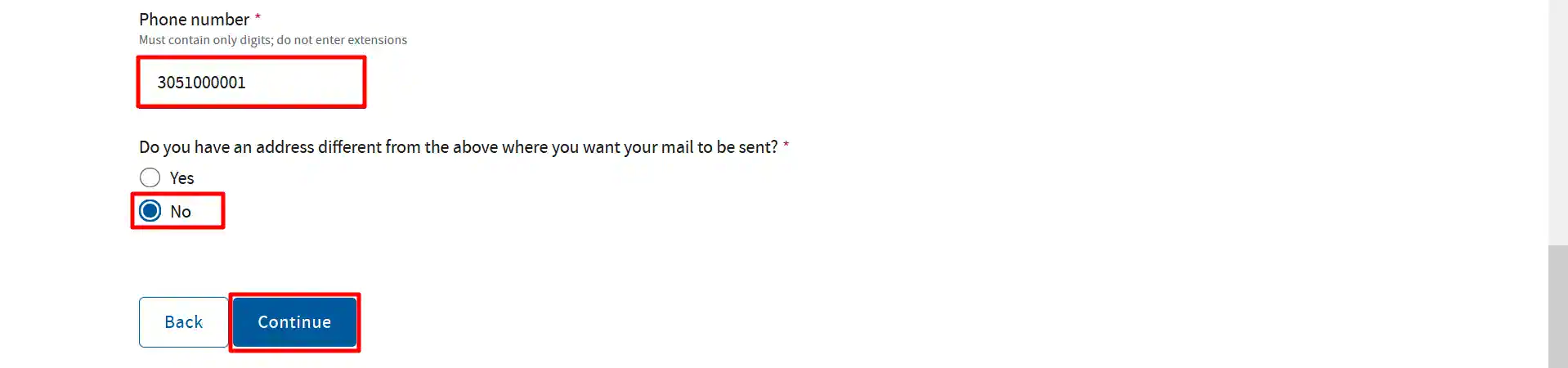
- Phone Number: Enter your contact number using digits only, without an extension.
- Mailing Address: The example selects No for a different mailing address. Select Yes if you want mail sent elsewhere.
- Continue: Review your information, then click Continue.
Step 5: Complete Your LLC’s Additional Details
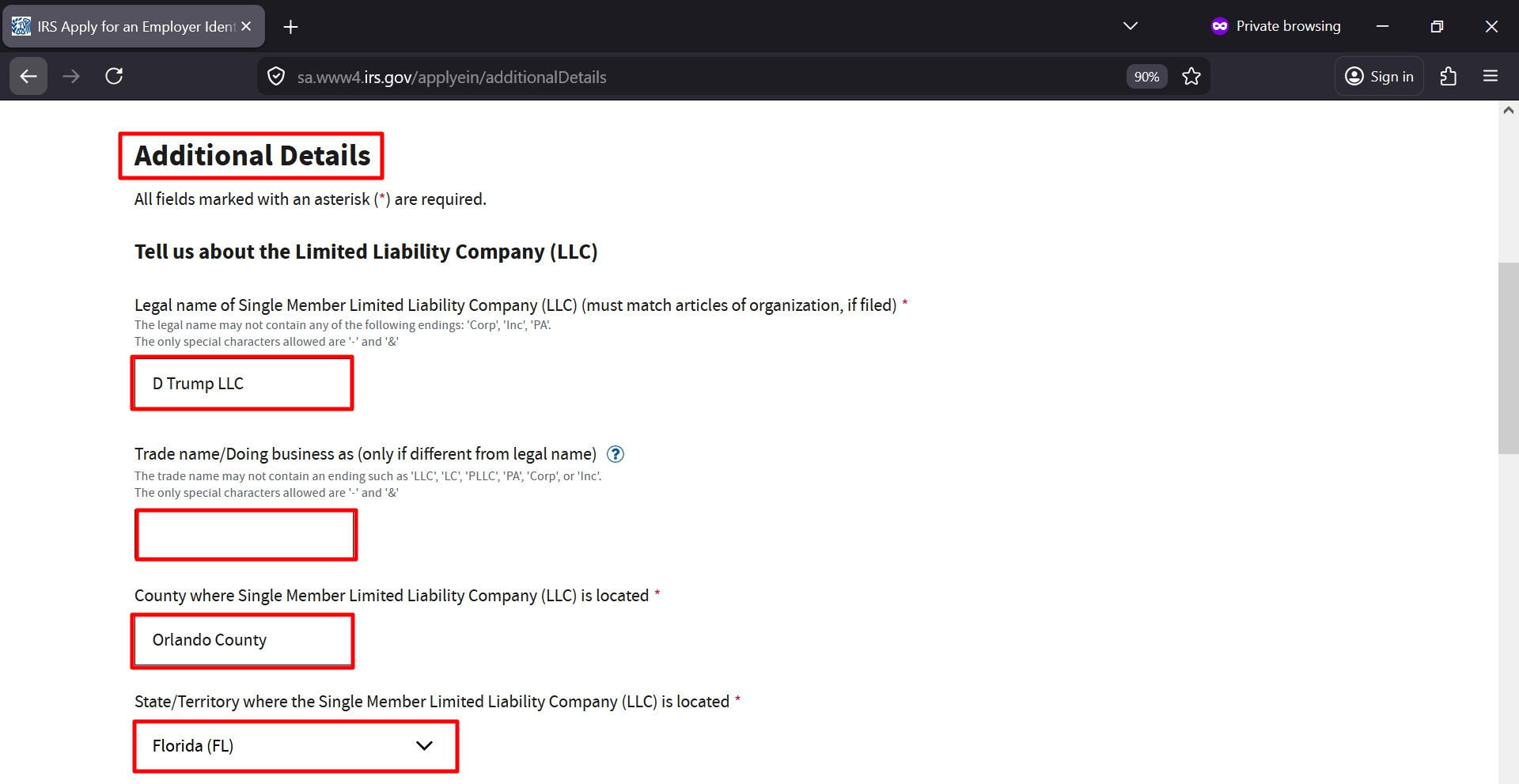
- Legal Name: The example shows D Trump LLC. Enter your LLC’s legal name exactly as listed in its articles of organization.
- Trade Name/Doing Business As: Enter a different trade name if applicable; otherwise, leave this blank.
- County and State: For the county and state, enter the real county and state of your business. Make sure you verify the county and not merely copy the example which has ‘Orlando County’
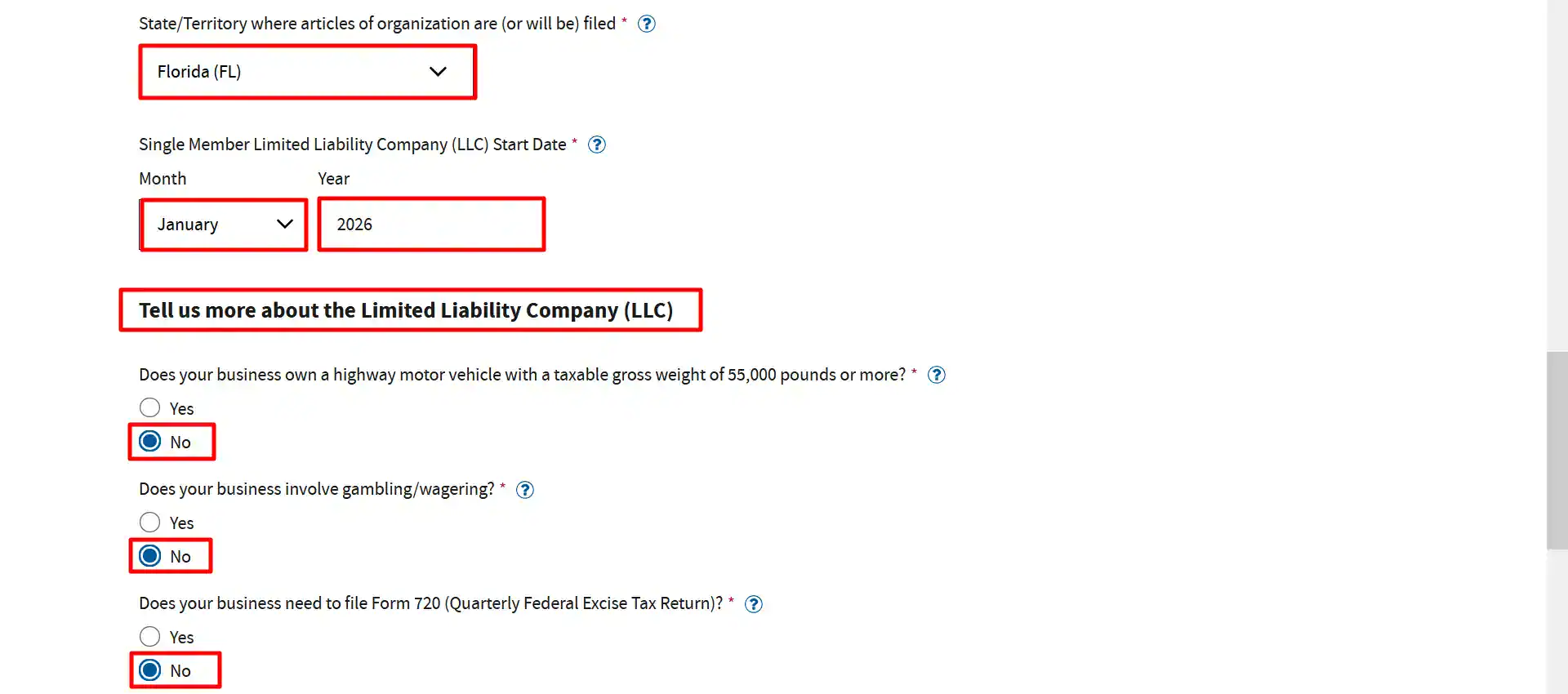
- Formation State: The example shows Florida (FL). Select the state in which your articles of organization were filed.
- Start Date: The example given is for January 2026. Fill in the actual month and year when your LLC was established.
- Business Questions: The example answers No to the heavy highway vehicle, gambling/wagering, and Form 720 questions. Answer each according to your business.
- Alcohol, Tobacco, or Firearms: choose the option that corresponds to your business activities; the example given selects No.
- Employees: State if you currently have or anticipate having employees who will receive Forms W-2 within the following 12 months. The example indicates No.
- Continue: Check your answers and then click Continue

Step 6: Describe Your Business Activity
- Business Category: Please choose the category which describes your business most accurately and make sure to go through the descriptions before doing so.
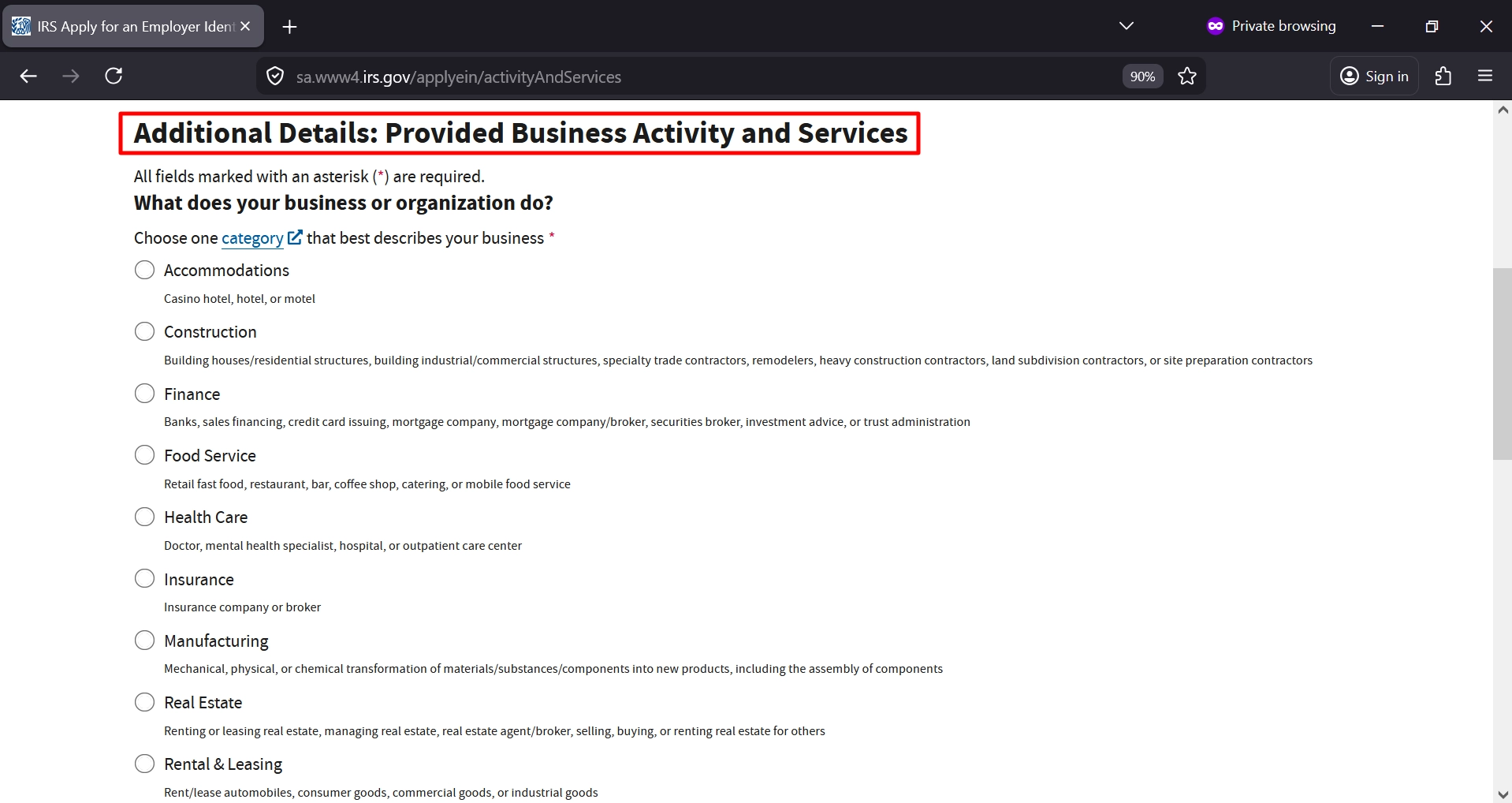
- Other Activities: The example selects Other in both lists. Use these selections only if the listed categories do not fit your business. Retail explicitly includes internet sales.
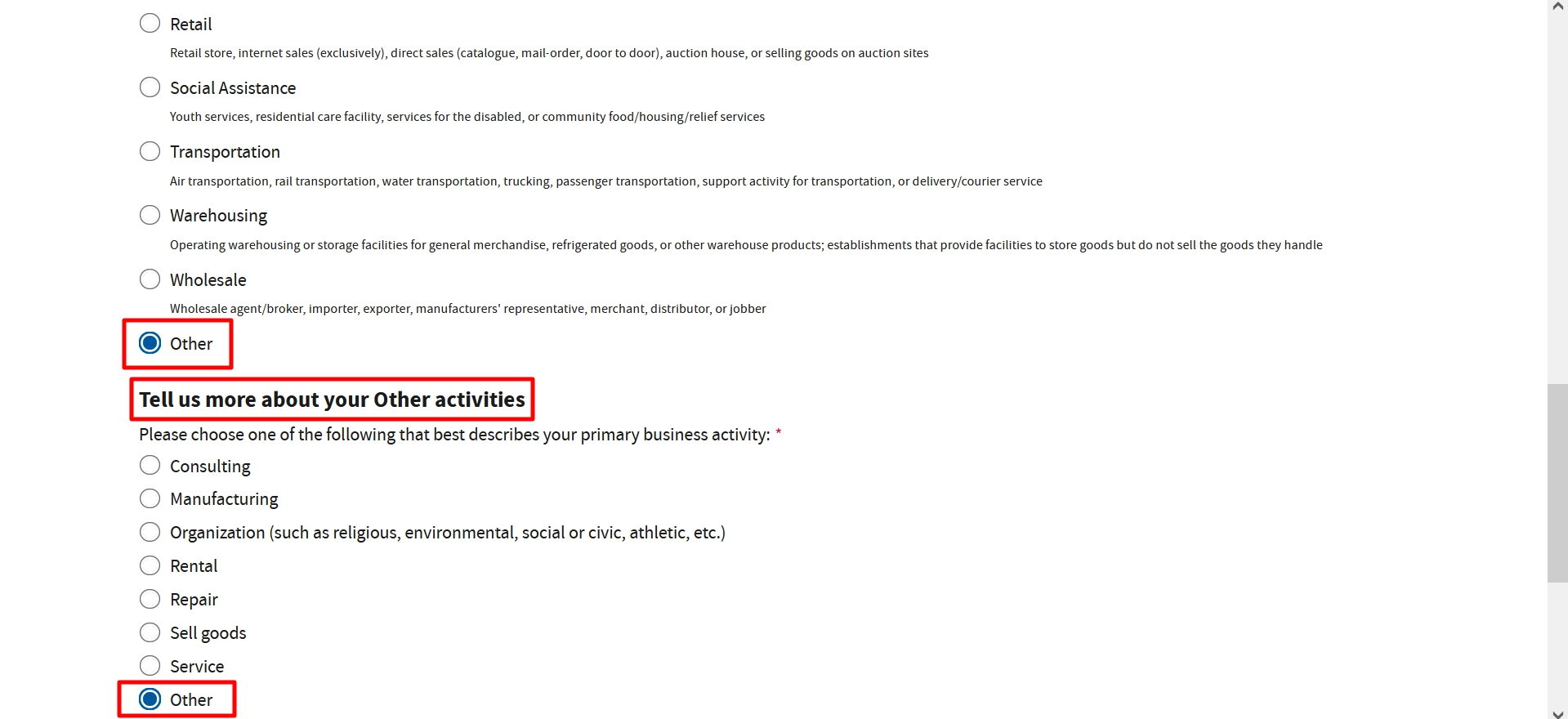
- Primary Business Activity: The example enters Selling on Amazon. Provide a brief, accurate description of your own main business activity.
- Continue: Review your selections, then click Continue.

Step 7: Review and Submit Your EIN Request
- Confirmation Letter: The example selects Receive letter digitally in the next step, allowing you to view, print, and save it. Alternatively, choose mail; the page advises allowing up to four weeks for delivery.
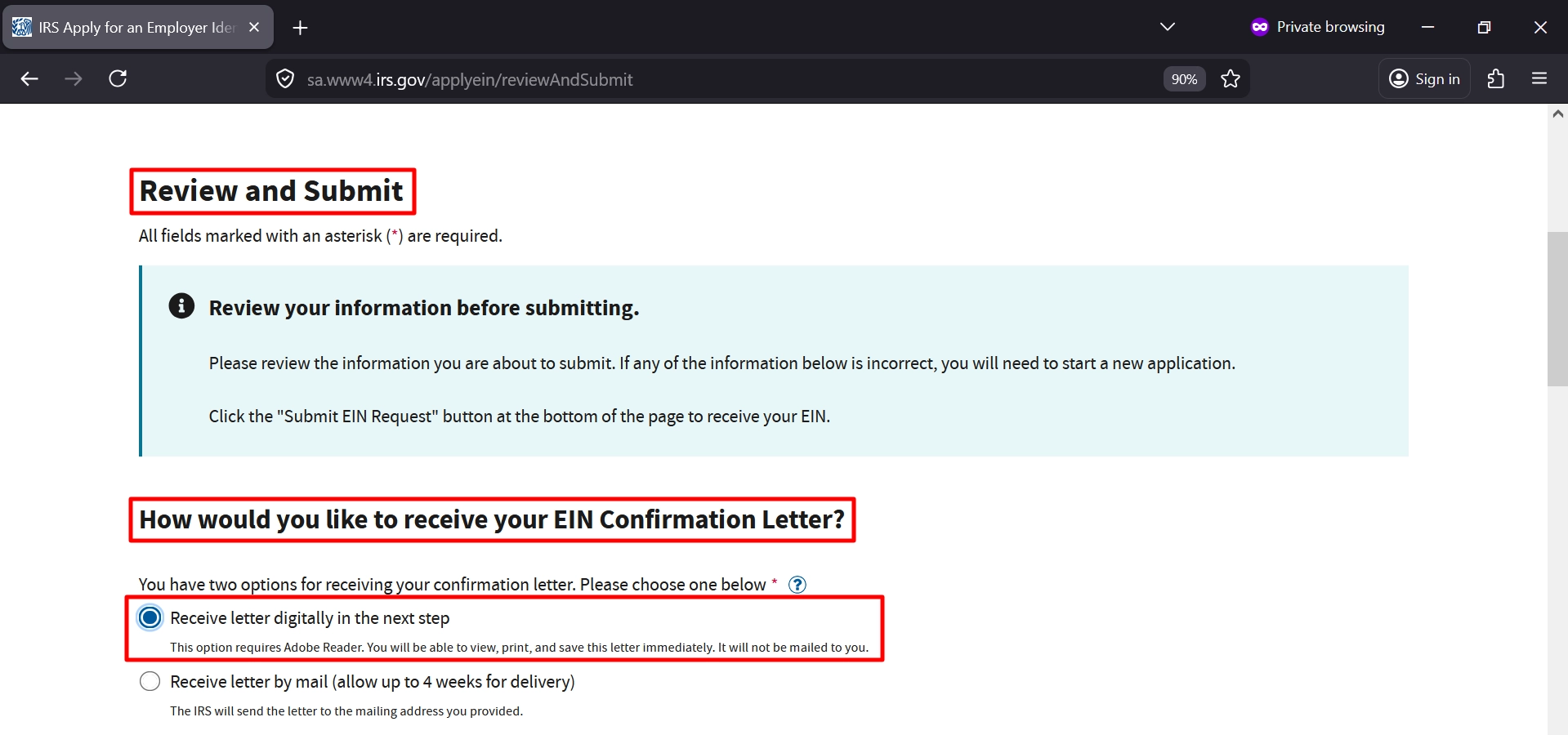
- LLC Information: Check your legal name, county, state, start date, and formation state. Verify the county instead of copying the example’s “Orlando County” entry.
- Address and Phone Number: Confirm your physical address and contact number are accurate.
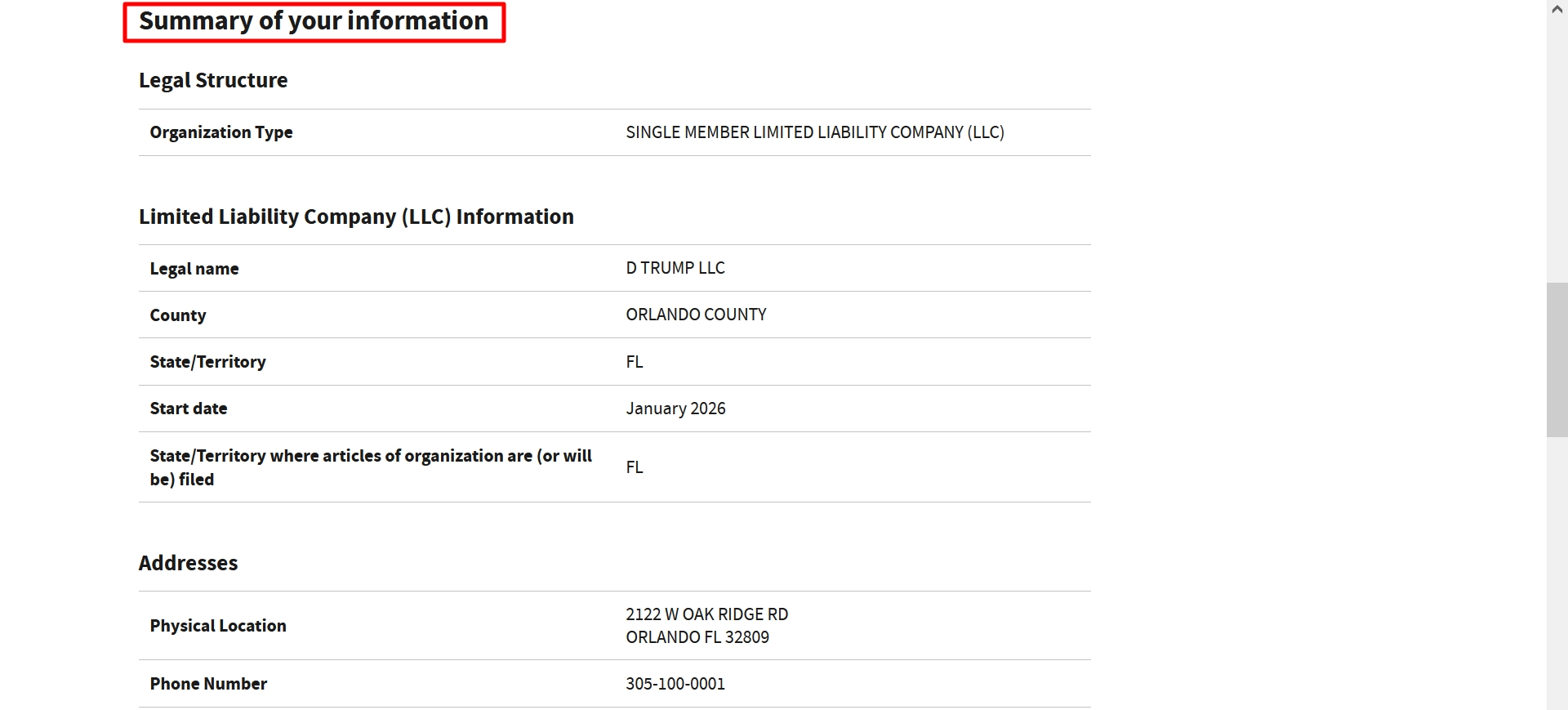 Responsible Party: Carefully check the name and SSN/ITIN.
- Business Details: Review your principal activity and all additional business answers. These must reflect your own LLC.
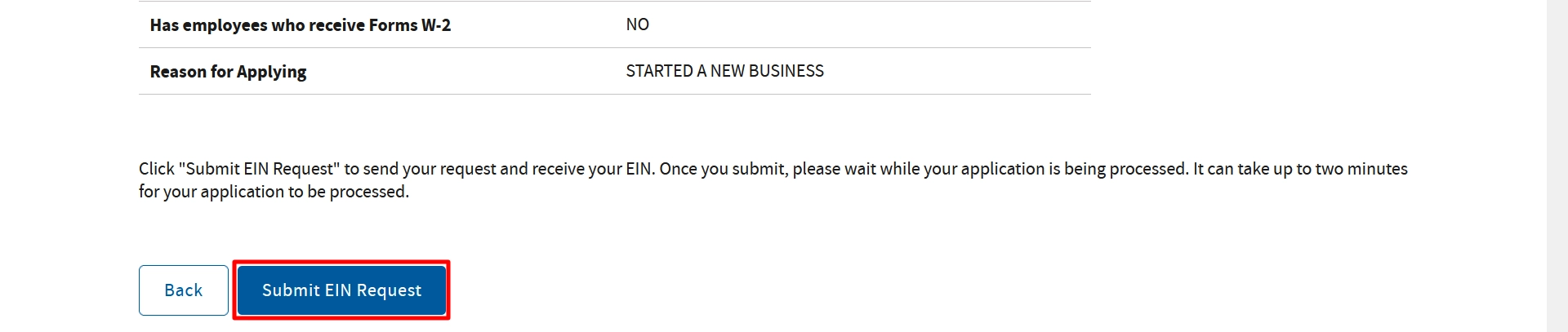
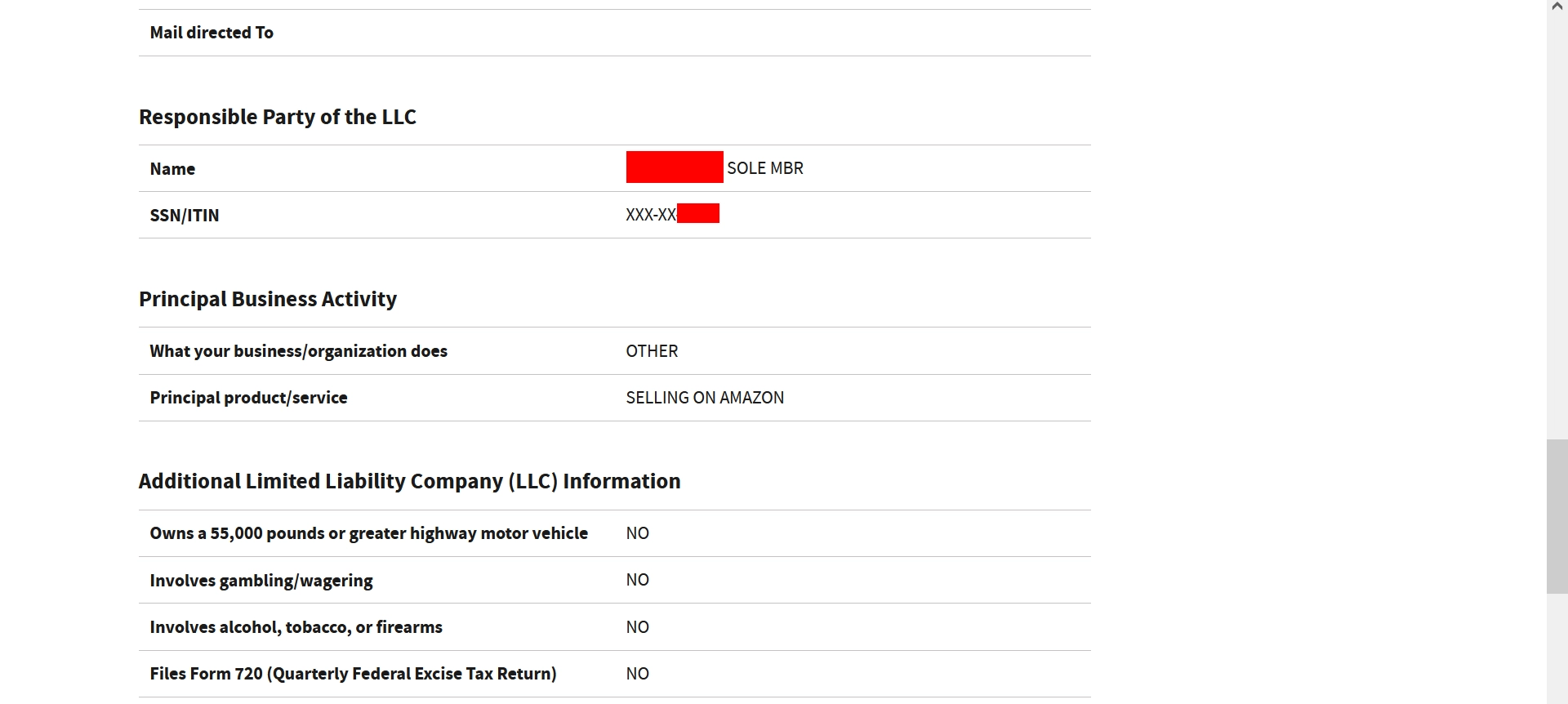 Final Review: Check your employee answer and reason for applying. The page states that incorrect information requires starting a new application.
- Submit EIN Request: Once everything is correct, click Submit EIN Request. Allow up to two minutes for processing, as indicated onscreen.
Step 8: Save Your EIN Confirmation Letter
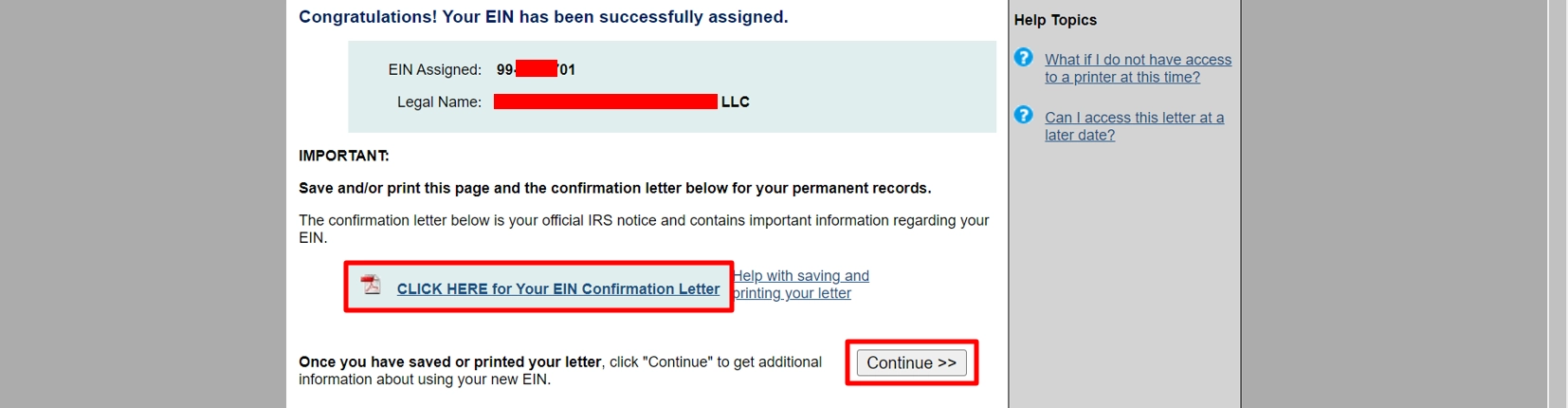
- EIN Assigned: This screenshot indicates that an EIN has been assigned. Please verify the displayed EIN and legal name.
- Confirmation Letter: Click here CLICK to open and save your official IRS notice confirmation letter.
- Keep Your Records: by saving or printing both this page and the confirmation letter for your permanent files.
- Continue >>: After you have saved your letter, click on Continue to get information about using your EIN.
Step 9: Finish Your EIN Session
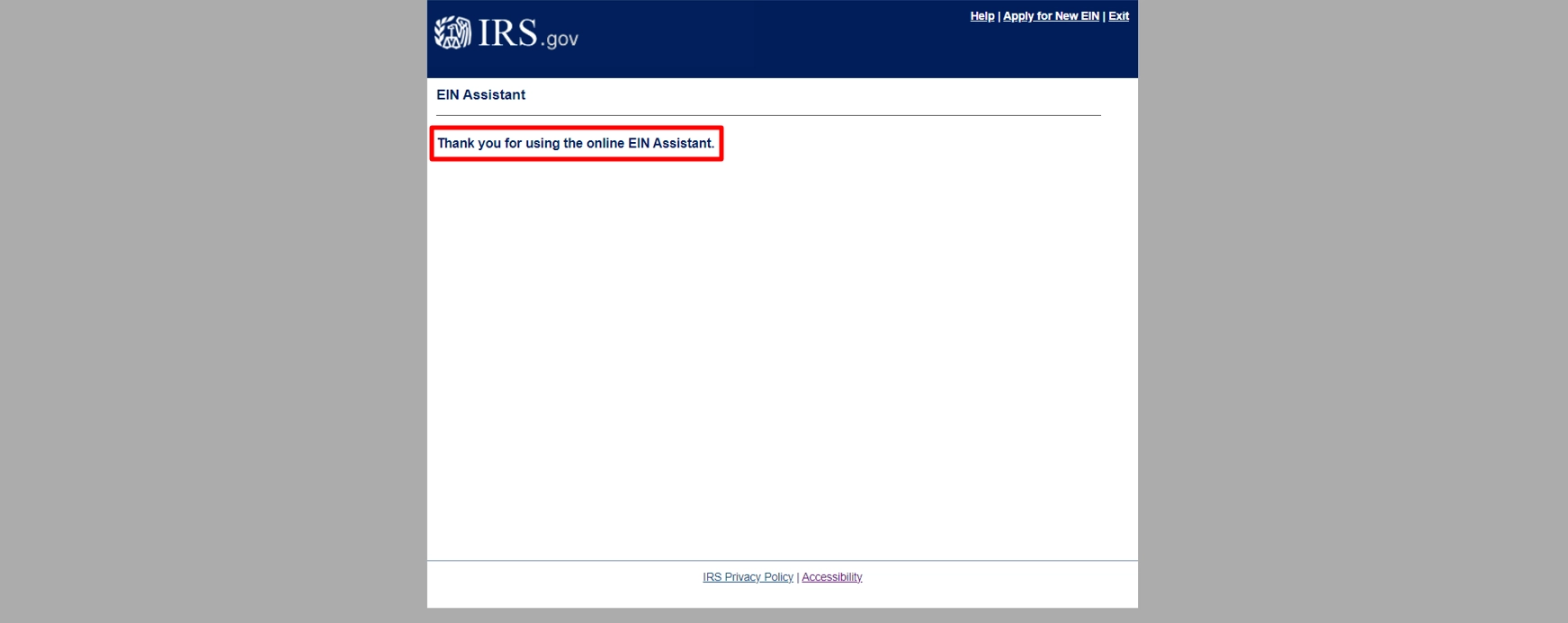
- Completion Message: The page displays “Thank you for using the online EIN Assistant.”
- Exit: After confirming you saved your EIN confirmation letter in the previous step, click Exit or close the browser tab.
What to Do After Getting Your EIN
- Check LLC Status: the assignment of an EIN does not serve as proof that your LLC has been approved by the state. You should check your formation status using the dashboard provided by your provider or by consulting the state records.
- Respond to Requests: Keep an eye on your email and dashboard for any requests for information.
- Save Documents: be sure to keep your EIN confirmation letter, the formation documents, and the operating agreement all in one place.
- Review Business Banking: Check whether you’re eligible for Mercury‘s business banking service or look at Airwallex, by comparing the requirements and fees.
- Consider Payment Processing: Look at the payment processing option and check whether Square Payments is compatible with your business.
- Build Your Online Presence: Create your online presence by looking at the different plans offered by Hostinger for a website and investigating Google Workspace for business email..
Helpful Resources
Links marked “partner/referral” are promotional resources. Approval and availability depend on each provider’s requirements.
- Start Your LLC here
- Read the EIN Guide
- Check Mercury Eligibility
- Explore Airwallex.
- Review Square Payments.
- View Hostinger Plans
- Explore Google Workspace.
Final Thoughts
Related Articles from LLCTutor.com
- How to Get an EIN as a Non-US Resident
- How to Start an LLC in New Mexico Step by Step Guide
- How to Form an LLC in Wyoming Step-by-Step Guide
- How to Start an LLC in Florida Step-by-Step Guide
Disclaimer
Disclaimer: LLCTutor.com is an educational website and does not offer any legal or financial advice. We encourage the adoption of lawful and ethical business practices in accordance with Islamic principles and do not support illegal activities, deceptive practices, gambling, business models based on interest, or any arrangements that fail to involve real ownership, responsibility, or commercial risk. It is up to the viewers to make sure that their own activities conform to the relevant laws and ethical standards. Also, some of the links in this description are affiliate links, which means that should you click on them and buy a service, I will receive a small commission, at no additional cost to you. I only recommend services that I have myself used and can trust. This in turn helps to support the blog and the channel so that I will be able to keep producing free content such as this!